How to Save Posts from Instagram (And Never Lose Them Again)

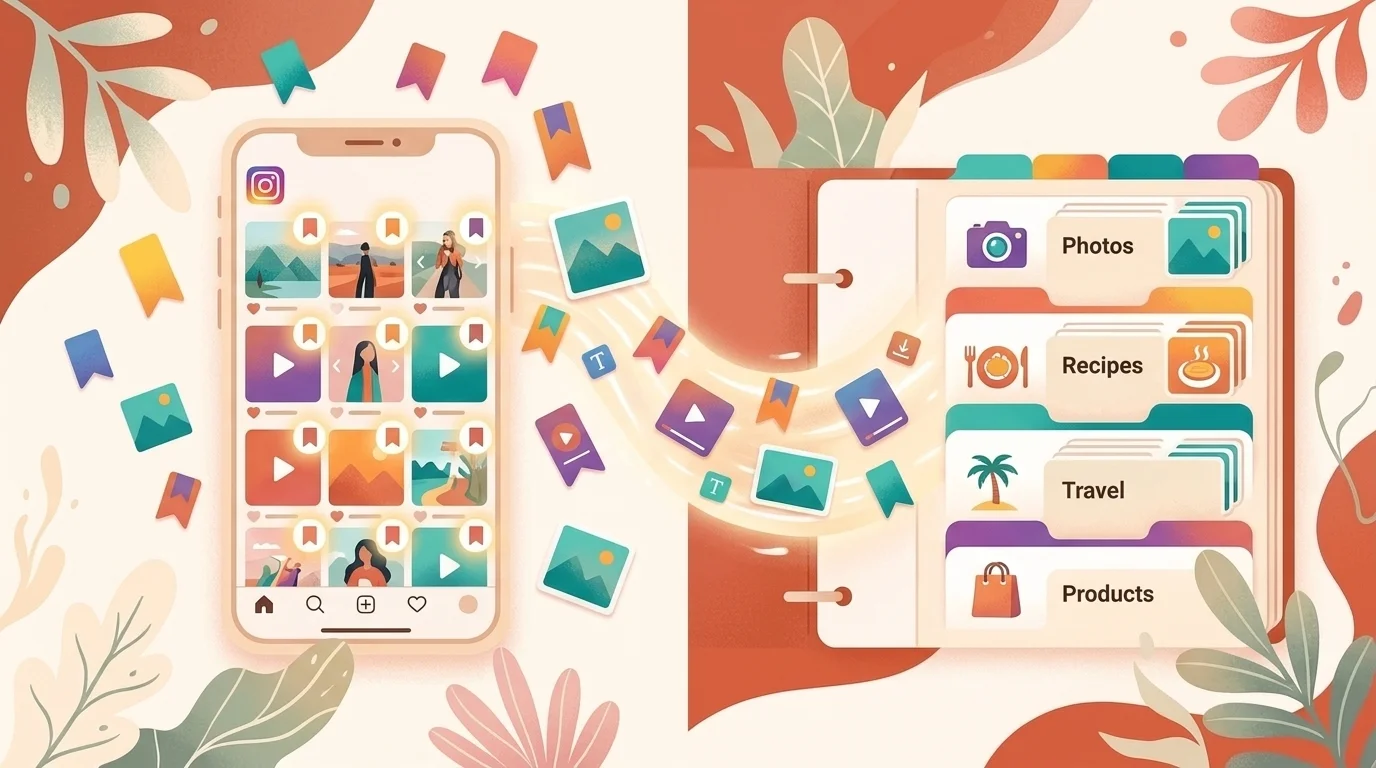
You tap the little bookmark icon on an Instagram post and feel like you have done something productive. The recipe is saved. The outfit inspiration is saved. The apartment decor idea is saved. Then, three weeks later, you scroll through your Saved folder looking for that recipe and find 400 unsorted items with no search, no context, and no way to find what you want without swiping through every single one.
Or worse: the post is gone. The creator deleted it, and your bookmark became a ghost — removed silently from your saved items with no notification and no way to recover it.
This is the fundamental problem with saving posts on Instagram. The save button is easy to tap but difficult to rely on. This guide covers how Instagram’s saving system actually works, what its real limitations are, and how to build a saving workflow that does not break.
How Instagram’s Save Feature Works
Instagram’s built-in save (the bookmark icon) is the default way to keep posts for later. Here is exactly how it works:
Saving a post:
- Tap the bookmark icon (ribbon shape) at the bottom right of any post, Reel, or carousel.
- The item is added to your Saved folder.
- The creator is not notified that you saved their post.
Organizing into Collections:
- Press and hold the bookmark icon on a post to save directly to a specific Collection.
- Or go to your profile → hamburger menu → Saved → tap the + icon to create a new Collection.
- Name your Collections whatever makes sense: Recipes, Travel, Workouts, Gift Ideas, Design Inspiration.
- Move items between Collections by tapping the three-dot menu on a saved item.
Collaborative Collections: Instagram added the ability to share Collections with friends. You create a Collection, invite specific people, and everyone can add posts to it. This turns saving into a social activity — useful for trip planning, shared mood boards, or group gift lists.
Accessing saved posts: Go to your profile → hamburger menu → Saved. You will see “All Posts” at the top and your custom Collections below it.
The Limitations Nobody Talks About
Instagram’s save feature looks simple and capable, but it has structural problems that become serious the more you use it:
Deleted posts disappear from your saves
This is the biggest issue. When a creator deletes a post, it vanishes from your Saved folder without any notification. You will not know it is gone until you look for it and it is not there. Instagram does not show a “this post was deleted” placeholder — the item simply ceases to exist.
If you saved a recipe from a food blogger’s carousel and that blogger decides to delete or archive the post, your saved reference is gone forever. This is not a bug; it is how the system is designed. Your bookmark is a pointer to a live post on Instagram’s servers, not a copy of the content.
For a deeper look at why this happens and what to do about it, see our guide on Instagram saved posts disappearing.
No search
There is no way to search your saved posts by keyword, caption text, hashtag, or creator name. If you have 200 saved posts and need to find a specific one, your only option is scrolling. Instagram organizes saved items in reverse chronological order — newest first — with no filtering, sorting, or text-based retrieval.
No export
Your saved posts cannot be exported, backed up, or accessed outside of the Instagram app. There is no API, no CSV export, no integration with other tools. Everything you save is locked inside Instagram’s ecosystem. If you switch platforms, deactivate your account, or simply want your data in another app, there is no official way to get it out.
No offline access
Saved posts require an internet connection to view. Without connectivity, your Saved folder shows cached thumbnails at best, and nothing at worst. If you wanted to reference a saved post on a flight or in an area with poor signal, you are out of luck.
No limit — but no guarantee
Instagram has not published an official cap on saved posts or Collections. Users report saving thousands of items without hitting a hard limit. But the absence of a limit does not equal reliability — every saved item depends on the original post continuing to exist on Instagram’s servers.
Method 1: Save to Collections (Built-In)
Best for: Quick, casual saving when you plan to revisit content within Instagram.
Despite the limitations, Collections are still the fastest way to save something for later:
- See a post worth saving.
- Press and hold the bookmark icon at the bottom right.
- Select an existing Collection or tap + to create a new one.
- Done.
Make it work better with a naming system: Instead of vague names like “Stuff” or “Inspo,” create specific, searchable (to your brain) Collection names. “Barcelona Trip Sept” is more useful than “Travel.” “Running Form Drills” beats “Fitness.” Since Instagram does not offer search, your Collection names are the only organizational tool you have.
Method 2: Screenshot the Post
Best for: Posts you absolutely cannot afford to lose — recipes, instructions, addresses, codes.
If a post contains information you need to survive regardless of what the creator does with it, screenshot it:
- Open the post so the content is fully visible.
- Press the side button + volume up simultaneously (iPhone).
- For carousels, swipe through each slide and screenshot individually.
Pros: The content is now a local file on your device, independent of Instagram. The creator can delete the post and your copy remains.
Cons: No clickable links. No searchable text. No metadata. The images land in your camera roll with no context or organization.
For carousel posts with 5-10 slides, this becomes tedious fast. But for a single image with important information, it is the most reliable insurance.
Method 3: Share to a Content Organizer (Recommended)
Best for: Anyone who saves posts regularly and wants to actually retrieve them later — across Instagram and other platforms.
The iOS share sheet lets you send Instagram posts to external apps, which solves the export and organization problems simultaneously:
- Tap the Share icon (paper airplane) on any post.
- Select Saverything from the share sheet.
- The link is saved, the platform is detected, and the content is automatically categorized by topic.
Why this matters:
- Your saves survive post deletion. Because you saved the link and metadata at the time of saving, you have a record even if the original content later disappears from Instagram.
- Cross-platform. If you also save tweets, LinkedIn posts, and web articles, everything lives in one searchable library instead of being scattered across five different apps.
- Automatic organization. Content is categorized by topic without manual tagging. A cooking Reel goes to Food, a JavaScript tutorial goes to Technology, a hiking post goes to Travel.
- Spaced repetition. Saved content resurfaces at intervals — 3 days, 7 days, 30 days — so you actually revisit what you saved instead of accumulating a graveyard of forgotten bookmarks.
The fundamental difference: Instagram’s bookmark is a pointer that depends on the original post existing. A content saver captures the save independently, so your library is yours regardless of what happens on Instagram.
Method 4: Request Your Data (Bulk Export)
Best for: Getting a complete archive of your own posted content.
If you are trying to back up your own Instagram posts (not content you saved from others), Instagram offers an official data download:
- Go to Settings → Your Activity → Download Your Information.
- Select what you want to export (posts, stories, messages, or everything).
- Choose a format: HTML for human-readable files, JSON for structured data.
- Submit the request. Instagram sends a download link to your email within 48 hours.
- Download the archive before the link expires (approximately 4 days).
Important: This only covers content you created and posted. It does not include posts you bookmarked from other accounts. There is no official way to export your saved/bookmarked posts.
Building a Saving Workflow That Works
The most reliable approach combines Instagram’s built-in tools with an external safety net:
- Use Collections for quick, casual saves — things you might want to revisit this week. If they disappear, it is not a big loss.
- Share to an external saver for anything that matters — recipes, recommendations, tutorials, references. This creates a copy that survives post deletion and can be searched.
- Screenshot information-critical posts — addresses, discount codes, one-time instructions. These are insurance copies.
- Do not rely on a single system. Instagram’s Saved folder is convenient but fragile. Treat it as a first pass, not an archive.
The 30 seconds it takes to share a post to an external app is the difference between “I saved it somewhere” and actually finding it when you need it.
FAQ
Does Instagram notify the creator when I save their post? No. Saving a post (tapping the bookmark icon) is completely private. The creator cannot see who saved their posts or how many times a specific user has saved them. They can see the total save count in their insights but not individual identities.
Is there a limit to how many posts I can save? Instagram has not published an official limit. Users report saving thousands of posts without issues. However, very large Saved folders can become slow to load on older devices.
Can I share a Collection with someone? Yes. Collaborative Collections let you invite specific friends to a shared collection. Everyone can add, view, and manage items within it.
Why did a saved post disappear from my folder? The most common reason is that the creator deleted or archived the original post. When the post is removed from Instagram, all bookmarks pointing to it are also removed — silently, without notification.
Can I recover a saved post that disappeared? No. If the original post was deleted, there is no way to recover your bookmark. This is why saving important content to an external tool (or screenshotting it) provides a safety net that Instagram’s native save does not.
Can I save posts from private accounts? Yes. You can bookmark any post from an account you follow, including private accounts. However, if you unfollow the account or they revoke your access, those saved items may become inaccessible.