How to Save LinkedIn Posts Permanently: Beyond the Built-In Save Button

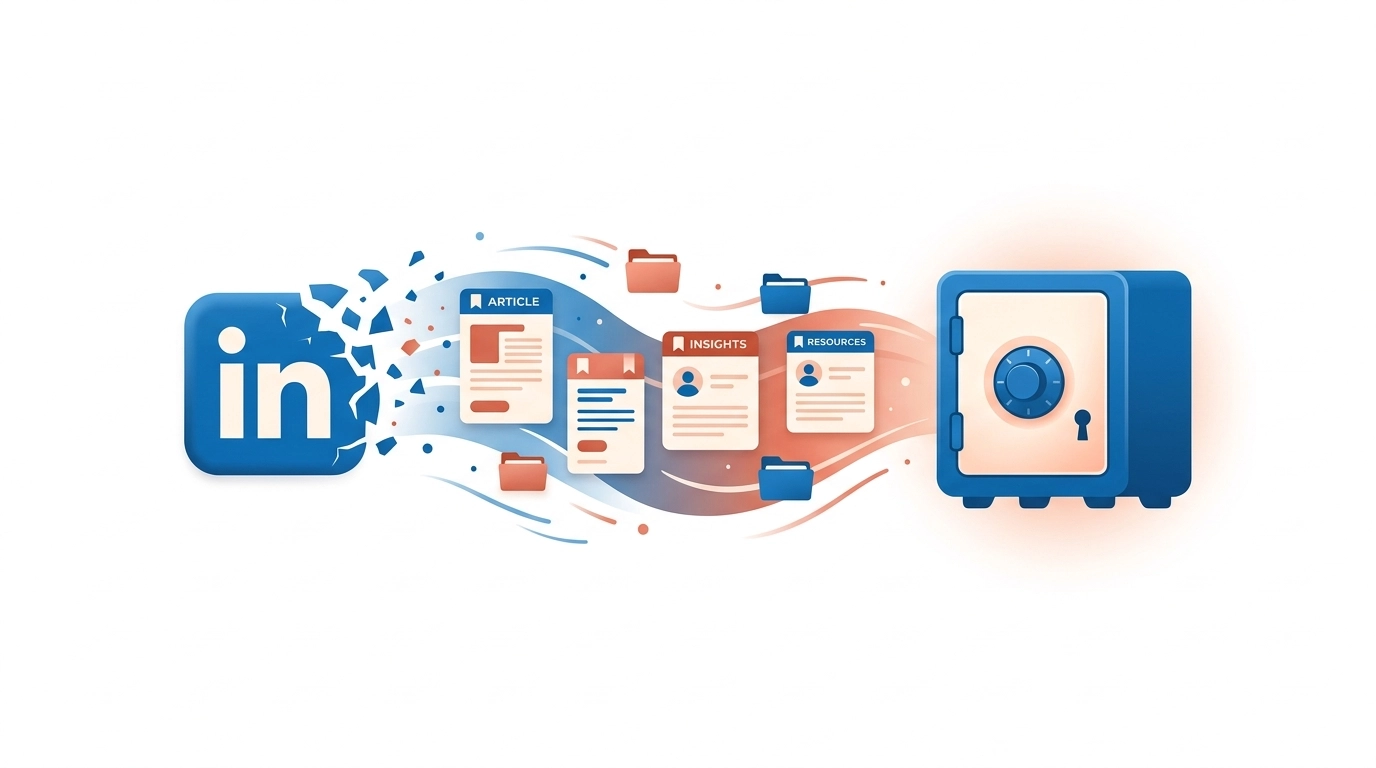
You save a LinkedIn post about a hiring trend, a salary negotiation tactic, or a framework from someone in your industry. Two weeks later you go looking for it and it is gone. Maybe the author deleted it. Maybe you cannot find it in the buried “My Items” section. Maybe LinkedIn’s algorithm has already pushed it so far down that scrolling will not help.
LinkedIn is a platform built for networking, not for saving. The content you encounter there — career advice, job leads, industry analysis, technical breakdowns — is often more valuable than the casual content you scroll past on other platforms. Yet the tools LinkedIn gives you to hold on to that content are minimal. No search within saves, no categories, no protection against deletion, and a retrieval experience that seems designed to keep you from ever finding what you saved.
This guide covers where LinkedIn saves actually live, why they disappear, and five methods for saving LinkedIn content permanently — from the built-in option to dedicated tools that solve the problems LinkedIn will not.
The Problem with LinkedIn’s Built-In Save Feature
LinkedIn lets you save posts by tapping the bookmark icon or selecting “Save” from the three-dot menu on any post. This puts the content into a section called “My Items.” In theory, this is your personal library of everything worth revisiting. In practice, it has problems that make it unreliable for anything beyond short-term, throwaway bookmarks.
No search. Your saved posts on LinkedIn are stored in a flat, reverse-chronological list. If you saved a post about interview preparation three months ago and want to find it, you scroll. There is no keyword search, no filtering by topic, and no way to jump to a date range. The more you save, the harder it becomes to find anything.
No organization. LinkedIn does not offer folders, tags, categories, or any other way to group your saves. A post about Python programming sits next to a motivational quote sits next to a job opening. Everything goes into one pile.
Content disappears without warning. LinkedIn saves are references, not copies. If the author deletes their post, your save vanishes. If the author’s account is deactivated or suspended, everything they posted disappears from your saves. If LinkedIn removes content for policy violations, your save is gone. In every case, you receive no notification that something you saved has been removed.
Hard to access. Finding where your saved posts live on LinkedIn is not immediately obvious, especially on mobile. The “My Items” section is not prominently featured in the navigation, and LinkedIn periodically moves it during app redesigns.
No offline access. Your saves depend on LinkedIn’s servers and the original content remaining live. There is no cached version, no export, and no way to access saves without an internet connection.
For casual saves — something you want to check later today — the built-in feature works well enough. For anything you might want to reference weeks or months later, it is not a reliable system.
Where to Find Your Saved Posts on LinkedIn
Before exploring alternatives, here is how to actually locate your existing LinkedIn saves. LinkedIn has moved this section multiple times, and the current path is not intuitive.
On desktop (browser)
- Log in to LinkedIn and look at the left sidebar on your home feed.
- Click “My Items” in the sidebar navigation. If you do not see it, click “Show more” to expand the sidebar.
- Your saved posts appear in a reverse-chronological list. You can filter between “Saved Posts” and “Saved Articles” using the tabs at the top.
On the LinkedIn mobile app (iPhone and Android)
- Open the LinkedIn app and tap your profile picture in the top-left corner. This opens the navigation drawer.
- Tap “Saved items” or “My Items” from the menu. The label depends on your app version.
- Scroll through the list to find what you saved.
If you cannot find “My Items” in either location, try navigating directly to linkedin.com/my-items/ in a browser. LinkedIn occasionally hides this section behind interface changes, but the direct URL has remained stable.
From your profile
- Tap your profile picture to go to your profile page.
- Look under the “Resources” section (visible only to you).
- “My Items” may appear here depending on your app version and LinkedIn’s current layout.
The fact that finding saved posts requires a guide is itself part of the problem. A save feature you cannot easily access is a save feature you will not use.
Why LinkedIn Saved Posts Disappear
If you have ever returned to your LinkedIn saves and found items missing, you are not imagining things. LinkedIn saved posts disappear for several specific reasons, and none of them come with a notification.
The author deleted the post. This is the most common reason. LinkedIn posts are not permanent — authors can delete them at any time, and when they do, the post disappears from everyone’s saves. This is especially common with posts about compensation, controversial opinions, or company-specific insights that the author later reconsiders.
The author’s account was deactivated or suspended. If someone deactivates their LinkedIn account (temporarily or permanently), all of their posts vanish from the platform, including from your saved items. Account suspensions have the same effect.
LinkedIn removed the content. LinkedIn’s content moderation team removes posts that violate community guidelines. This can include posts flagged for misinformation, spam, or policy violations. When a post is removed, it is removed from all users’ saves as well.
The post was edited into something different. Unlike deletion, editing does not remove a post from your saves — but the content you see when you return may be substantially different from what you originally saved. LinkedIn does not maintain version history for posts, so you have no way to access the original version.
In every case, the underlying issue is the same: LinkedIn saves are pointers to live content, not copies. When the content goes away, the pointer becomes useless.
Method 1: LinkedIn’s Native Save (Limited)
Best for: Temporarily holding a post you plan to read within the next day or two.
Tap the bookmark icon on any LinkedIn post or select “Save” from the three-dot menu. The post appears in your “My Items” section.
Pros:
- Zero friction — one tap from any post in your feed
- Works on both desktop and mobile
- No additional apps or tools required
Cons:
- No search within saved items
- No folders, tags, or categories
- Saves vanish when original content is deleted
- Difficult to locate saved items (buried in navigation)
- No offline access
- No notification when a saved post disappears
- No limit is documented, but heavy savers report issues with very large collections
For quick, same-day reference, the native save is fine. For building a reference library of career and industry knowledge, it is inadequate.
Method 2: Screenshot + Notes App (Manual)
Best for: Preserving the exact visual appearance of a specific post you need to keep.
Take a screenshot of the LinkedIn post (side button + volume up on iPhone), then optionally move it to a dedicated album or paste it into a note.
Pros:
- Completely independent of LinkedIn — survives deletion, deactivation, and policy removal
- Captures exactly what you saw on screen
Cons:
- No clickable links. URLs, mentioned profiles, and linked articles are trapped in the image.
- No searchable text. You cannot search for a keyword across your screenshots without relying on imperfect OCR.
- No organization. Screenshots land in your camera roll alongside every other photo.
- No metadata. The screenshot does not capture the author’s profile link, post timestamp, or engagement context.
- Time-consuming. Switching between LinkedIn and Notes for every save adds up quickly.
Screenshots work as a last-resort backup for individual posts, but they do not scale to regular use.
Method 3: Share to a Content Saver App (Recommended)
Best for: Anyone who regularly saves LinkedIn content and wants to actually find it again later.
LinkedIn posts can be shared through the iOS share sheet just like tweets, Instagram posts, or web links. This means any content saver app that supports the share extension can receive LinkedIn content directly.
Here is how this works with Saverything:
-
Open the LinkedIn post you want to save. This works from your feed, search results, notifications, or someone’s profile — any view where the post is visible.
-
Tap the share icon on the post. On the LinkedIn mobile app, this is the paper-plane icon labeled “Send.” Then select “Share via” to access the system share sheet, or tap the three-dot menu and select “Copy link” if sharing directly is not available.
-
Select Saverything from the share sheet app row. If this is your first time, you may need to scroll and tap “More” to enable Saverything in your share extensions.
-
The save is complete. Saverything captures the post link, detects that it came from LinkedIn, and automatically categorizes it by topic — Career, Technology, Finance, or whatever fits the content. No manual tagging required.
This method solves the core problems with LinkedIn’s native save:
- Searchable. Find any saved post by keyword, even months later.
- Automatically organized. Saves are grouped by topic without any manual effort.
- Survives deletion. Your save exists independently of LinkedIn. If the author deletes the post or deactivates their account, your saved reference persists.
- No limit. Save as many posts as you want without caps or degraded performance.
- Cross-platform collection. The same workflow works for saving tweets, Instagram posts, Reddit threads, articles, and any web content. Your LinkedIn career insights sit alongside your Twitter threads and saved articles in one organized library. If you also save from Twitter, the process is identical — see our guide to saving tweets on iPhone.
- Smart reminders. Spaced-repetition reminders resurface saves you have not revisited, which is especially useful for career development content that is worth re-reading.
The save takes two seconds — the same effort as tapping LinkedIn’s bookmark icon, but with dramatically better retrieval.
Method 4: Browser Extensions
Best for: Desktop LinkedIn users who do most of their browsing in Chrome or Firefox.
Several browser extensions offer enhanced LinkedIn saving. SaveIn lets you download LinkedIn posts, articles, and media directly from the browser. LinkedMash provides similar functionality with batch-saving options.
Pros:
- Can download post content, not just bookmark it
- Some extensions save full article text and images locally
- Useful for archiving content you need to reference in documents or presentations
Cons:
- Desktop only. These extensions do not work on the LinkedIn mobile app, which is where most casual LinkedIn browsing happens.
- No iOS support. If you primarily use LinkedIn on your iPhone, browser extensions are not an option.
- Extension quality varies. Some extensions break when LinkedIn updates its interface, and maintenance depends on individual developers.
- No automatic organization. Most extensions save files to your downloads folder with no categorization.
- Privacy considerations. Extensions that interact with LinkedIn require access to your browsing data on the platform.
Browser extensions are a reasonable option if you use LinkedIn primarily on desktop and need to download specific content for offline reference. For mobile-first users, they do not solve the problem.
Method 5: Copy Link to Notes
Best for: Occasional saves when you do not want to install any additional app.
Tap the three-dot menu on any LinkedIn post, select “Copy link,” switch to Apple Notes (or any text app), and paste the link. Add a brief note about why you saved it.
Pros:
- No additional apps required
- The link lets you return to the original post
- Apple Notes offers search, so you can find links if you added descriptions
Cons:
- Manual process for every save. Copy, switch apps, paste, annotate — roughly 20-30 seconds per post.
- Link-only. If the original post is deleted, the link is dead and you have no record of the content.
- No automatic organization. Every link lands in the same note unless you maintain a manual folder system.
- Scales poorly. This works for a few saves per month but becomes unmanageable at higher volumes.
Copying to Notes is a functional fallback for occasional saves, especially if you add descriptive text alongside the link. It does not work as a primary system for regular LinkedIn saving.
LinkedIn Saved Posts vs External Content Savers: Comparison
| Feature | LinkedIn Native Save | Screenshot + Notes | Content Saver App | Browser Extension | Copy Link to Notes |
|---|---|---|---|---|---|
| Save effort | 1 tap | 2 taps + app switch | 1 tap (share sheet) | 1-2 clicks | 30 seconds |
| Searchable | No | No (image only) | Yes (full text) | Varies | Manual only |
| Organized | No | No | Yes (automatic) | No | Manual only |
| Survives deletion | No | Yes | Yes | Yes (if downloaded) | No |
| Works on iPhone | Yes | Yes | Yes | No | Yes |
| Offline access | No | Yes | Cached | Yes (if downloaded) | Partial |
| Cross-platform saves | LinkedIn only | LinkedIn only | All platforms | LinkedIn only | Any link |
For most users, the content saver app approach offers the best combination of low effort and high retrieval quality. For a broader look at how these tools compare, see our best content saver apps guide.
Frequently Asked Questions
Is there a way to save posts on LinkedIn?
Yes. LinkedIn has a built-in save feature — tap the bookmark icon on any post or select “Save” from the three-dot menu. The post is stored in your “My Items” section, accessible from the left sidebar on desktop or the navigation drawer in the mobile app. However, this save is a reference to the live post, not a copy. If the author deletes the post, your save disappears with it. For permanent saves, use the iOS share sheet to send LinkedIn posts to a dedicated content saver like Saverything, which stores the content independently.
Is there a way to download LinkedIn posts?
LinkedIn does not offer a native download feature for individual posts. On desktop, browser extensions like SaveIn can download post content and media files. On mobile, the most practical approach is sharing the post to a content saver app through the share sheet, which captures the link and metadata. For your own posts specifically, you can request a data download from LinkedIn (Settings > Data Privacy > Get a copy of your data), but this only includes content you posted, not content from other people.
What does it mean to save a post on LinkedIn?
When you save a post on LinkedIn, you are bookmarking a reference to that post. The post is not copied or downloaded — LinkedIn simply adds a pointer to your “My Items” list. This means your save depends entirely on the original post remaining live on the platform. If the author deletes the post, sets it to a different visibility, or if LinkedIn removes it, your save disappears. You receive no notification when this happens.
How to find saved posts on LinkedIn iPhone?
Open the LinkedIn app, tap your profile picture in the top-left corner to open the navigation drawer, then tap “Saved items” or “My Items.” Your saved posts appear in a reverse-chronological list. If you cannot find this option in the app menu, try opening linkedin.com/my-items/ in Safari — the direct URL is more reliable than navigating through the app, which changes its layout frequently.
Why did my LinkedIn saved posts disappear?
LinkedIn saved posts disappear when the original content is no longer available. The most common causes are: the author deleted the post, the author deactivated their account, or LinkedIn removed the post for violating community guidelines. In all three cases, your save is removed without any notification. There is no recovery mechanism within LinkedIn — once the underlying content is gone, the save is gone permanently. This is why saving important LinkedIn content to an external tool is the only way to guarantee long-term access.
Is there a limit to LinkedIn saved posts?
LinkedIn has not officially documented a save limit. Most users will never encounter a cap under normal usage. However, some users with very large collections have reported the saved items list becoming slow to load or failing to display older saves. If you are a heavy saver, the practical limit is less about a hard cap and more about the impossibility of finding anything in a long, unsearchable list.
Can I search my LinkedIn saved posts?
No. As of 2026, LinkedIn does not offer any search functionality within your saved posts. Your only option for finding a specific save is scrolling through the reverse-chronological list in “My Items.” This is one of the most requested features from LinkedIn users and one of the strongest reasons to use an external content saver that provides keyword search across all your saves.
Do saved LinkedIn posts work offline?
No. LinkedIn saves are pointers to live content on LinkedIn’s servers. You need an active internet connection to view any saved post. If you need offline access to LinkedIn content, you need to save it outside of LinkedIn — either as a screenshot, a downloaded file via a browser extension, or through a content saver app that caches content locally.
The Bottom Line
LinkedIn content is uniquely valuable — career advice, industry analysis, job leads, and professional connections produce insights you will not find on other platforms. But LinkedIn’s saving tools treat this content as disposable. No search, no organization, no protection against deletion, and a retrieval experience that buries your saves behind multiple taps.
The founder of Saverything, Tolga Caglayan, built the app specifically because he kept saving LinkedIn posts — salary negotiation frameworks, engineering management advice, hiring trends — and never going back to check them. Not because the content was not valuable, but because the save-and-forget cycle had no built-in mechanism to resurface what he had saved. The combination of unsearchable saves and no reminders meant that valuable professional insights were effectively lost the moment they left the feed.
If you save LinkedIn content more than occasionally, the share-sheet approach with a dedicated saver gives you everything LinkedIn’s native save does not: search, automatic categorization, deletion protection, and reminders that bring your saves back to the surface when they are relevant again.
Saverything saves LinkedIn posts, tweets, Instagram content, and web articles in one organized place — free on iOS, no signup required.